


UltraViewer installation and use has become essential for anyone needing reliable remote desktop access. This free remote control software lets you connect to another computer from anywhere, making it perfect for technical support, remote work, and helping family members with computer issues.
UltraViewer Installation Steps
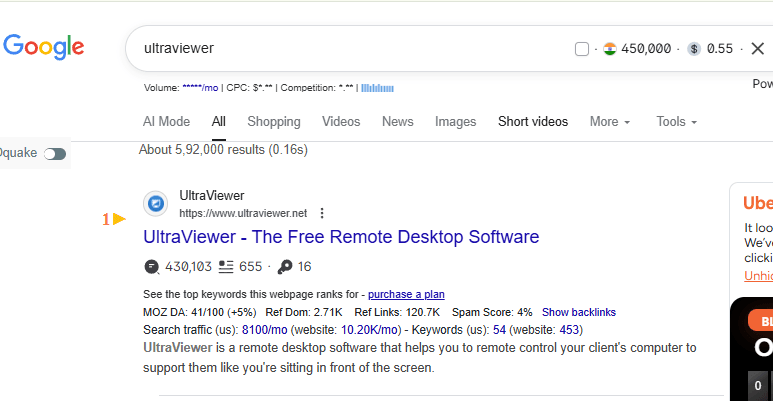
Step 1: Go to Google and type Ultraviewer
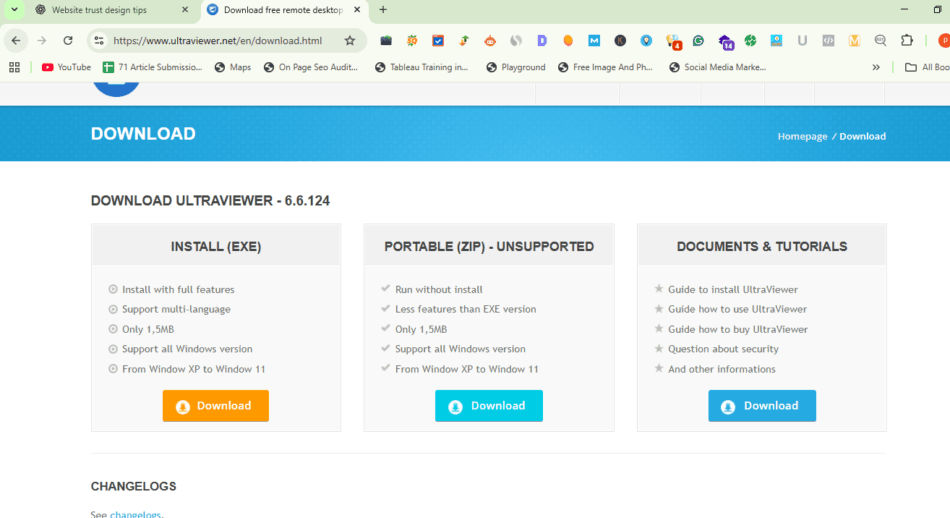
Step 2:Go to the download section and choose the first option, install (EXE)
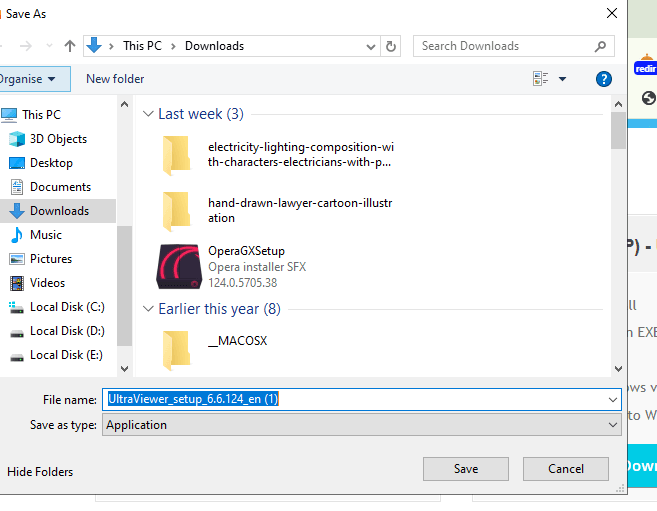
Step 3:UltraViewer Exe file will be downloaded
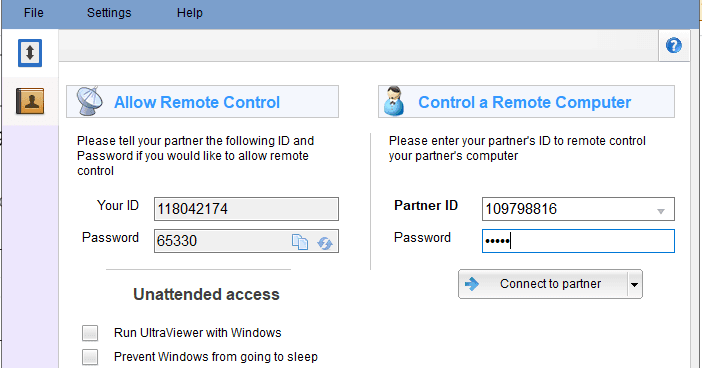
Step 4:UltraViewer interface will look like this. Your ID and password will be shown
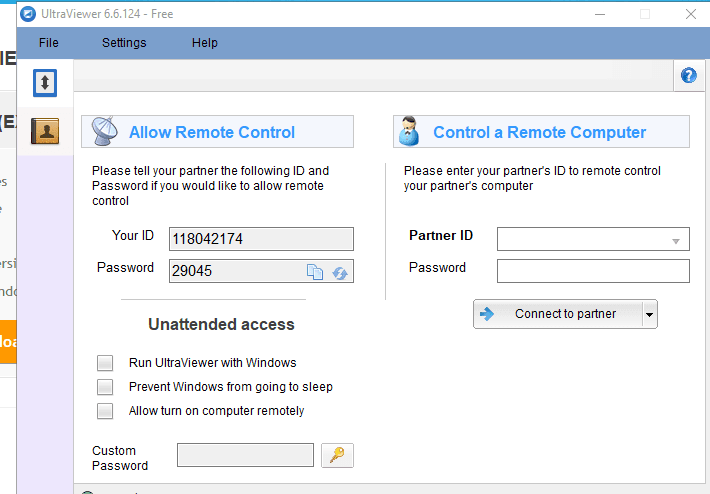
Step 5 : Enter your partner ID and password to access their system
Remote desktop software has transformed how we provide technical assistance and access computers remotely. Whether you’re an IT professional or someone who needs to help others with computer problems, understanding proper setup procedures makes all the difference.
UltraViewer is a remote desktop application that enables you to control another computer over the internet. The software creates a secure connection between two devices, allowing you to view the screen, move the mouse, type on the keyboard, and transfer files as if you were sitting in front of that computer.
What is UltraViewer?
This remote access tool works on Windows operating systems and provides features similar to TeamViewer and AnyDesk, but with its own advantages for personal and commercial use.
System Requirements
Before starting the download process, verify your computer meets these specifications:
| Component | Requirement |
| Operating System | Windows 7, 8, 10, 11 (32-bit or 64-bit) |
| RAM | Minimum 512 MB (2 GB recommended) |
| Processor | 1 GHz or faster |
| Internet Connection | Stable broadband connection |
| Disk Space | 10 MB free space |
| Screen Resolution | 1024×768 or higher |
How to Download UltraViewer
Getting the software on your computer takes just a few minutes:
- Open your web browser and visit the official UltraViewer website
- Click the “Download” button on the homepage
- The installer file (approximately 5-7 MB) will download to your computer
- Locate the downloaded file in your Downloads folder
- Right-click the installer and select “Run as Administrator”
Important: Always download from the official website to avoid malware or modified versions.
The software installs quickly without bundled toolbars or unwanted programs.
First-Time Setup and Configuration
After completing the installation, you need to configure basic settings:
Creating Your Account
- Open UltraViewer from your desktop or Start menu
- You’ll see your unique ID and password displayed in the main window
- Click “Register” to create a free account
- Enter your email address and create a password
- Verify your email through the confirmation link
- Log in to access additional features
Configuring Basic Settings
Access the settings menu by clicking the gear icon:
Display Settings:
- Adjust screen quality (Low, Medium, High, Best)
- Enable or disable wallpaper during connection
- Choose color depth settings
Security Options:
- Set a permanent password instead of random passwords
- Enable two-factor authentication
- Configure access permissions
Audio Settings:
- Enable sound transmission
- Adjust audio quality
- Select microphone and speaker devices
How to Use UltraViewer for Remote Control
Using the software for remote connections involves two roles: the person providing support (controller) and the person receiving help (client).
Connecting to Another Computer
As the Controller:
- Launch UltraViewer on your computer
- Ask the other person for their ID and password
- Enter their ID in the “Partner ID” field
- Click “Connect”
- Enter the password when prompted
- Wait for the connection to establish
As the Client (Receiving Support):
- Open UltraViewer
- Share your ID and password with the person helping you
- Wait for the connection request
- Accept the incoming connection
- The controller can now access your desktop
Remote Control Features
Once connected, you can use these capabilities:
Screen Control:
- View the remote desktop in real-time
- Control mouse movements and clicks
- Type using your keyboard
- Switch between multiple monitors
- Take screenshots of the remote screen
File Transfer:
- Drag and drop files between computers
- Transfer folders and multiple files
- Monitor transfer progress
- Resume interrupted transfers
Communication Tools:
- Text chat with the remote user
- Voice chat for real-time communication
- Video chat (if webcams are available)
- Send system information
Control Panel Options
The toolbar at the top of the connection window provides quick access to:
- Chat: Open the messaging window
- File Transfer: Launch the file manager
- Screenshot: Capture the remote screen
- Settings: Adjust connection quality
- Full Screen: Expand to full screen mode
- Minimize: Reduce the window
- Close: End the connection
font-size” style=”font-size: var(–text-2l);”>
Advanced Features and Settings
Unattended Access
Set up computers for access without anyone present:
- Open UltraViewer settings
- Navigate to the “Security” tab
- Set a permanent password
- Enable “Unattended Access”
- Configure startup options to launch with Windows
- Save your settings
This feature works perfectly for accessing your own computers remotely or managing servers.
Managing Multiple Connections
The software supports simultaneous connections:
- Connect to several computers at once
- Switch between active sessions
- Organize connections in your contact list
- Create groups for different clients or departments
Recording Sessions
Document your remote sessions for training or troubleshooting:
- Click the “Record” button during an active session
- Choose the save location for the video file
- Stop recording when finished
- Access recordings through the file manager
Troubleshooting Common Issues
Connection Problems
Cannot Connect to Partner:
- Verify both computers have active internet connections
- Check if firewall settings block UltraViewer
- Ensure you’re using the correct ID and password
- Try restarting the application
- Disable VPN temporarily if connection fails
Slow Performance:
- Lower the screen quality in settings
- Close unnecessary programs on both computers
- Check your internet speed
- Reduce color depth
- Disable wallpaper and visual effects
Black Screen During Connection:
- Update your graphics drivers
- Disable hardware acceleration
- Run UltraViewer as administrator
- Check Windows display settings
Installation Errors
If installation fails:
- Disable antivirus temporarily
- Run installer with administrator privileges
- Clear temporary files
- Download a fresh copy of the installer
- Check available disk space
Security and Privacy Considerations
Remote access software requires attention to security:
Best Practices
Password Security:
- Change default passwords immediately
- Use strong, unique passwords
- Never share passwords via unsecure channels
- Enable random password generation for one-time sessions
Connection Safety:
- Only connect with trusted individuals
- Monitor active connections regularly
- End sessions when work is complete
- Review connection logs periodically
Data Protection:
- Understand that the controller sees everything on your screen
- Close sensitive documents before granting access
- Use the privacy mode to hide specific windows
- Enable encryption in settings
Comparing UltraViewer with Alternatives
| Feature | UltraViewer | TeamViewer | AnyDesk |
| Free for Personal Use | Yes | Yes (limited) | Yes |
| Commercial License Cost | Lower | Higher | Medium |
| File Transfer | Yes | Yes | Yes |
| Mobile Apps | Limited | Full support | Full support |
| Ease of Use | Excellent | Good | Excellent |
| Connection Speed | Fast | Fast | Very Fast |
Tips for Optimal Performance
Getting the best experience requires following these recommendations:
Network Optimisation:
- Use wired Ethernet connections when possible
- Close bandwidth-heavy applications
- Avoid streaming video during sessions
- Schedule large file transfers for off-peak hours
Computer Preparation:
- Update Windows and drivers regularly
- Close unnecessary background programs
- Increase virtual memory if needed
- Keep antivirus software updated
Session Management:
- Start with lower quality settings and increase as needed
- Use chat instead of voice when bandwidth is limited
- Transfer files before starting control sessions
- Schedule regular maintenance windows
Using UltraViewer for Business
The software serves various professional needs:
IT Support Teams:
- Provide quick assistance to employees
- Troubleshoot software issues remotely
- Install updates and patches
- Monitor system performance
Customer Service:
- Help customers solve problems visually
- Reduce support call duration
- Improve customer satisfaction
- Document support interactions
Remote Work:
- Access office computers from home
- Collaborate with team members
- Share screens during presentations
- Maintain productivity while traveling
Conclusion
UltraViewer installation and use provides an accessible solution for remote desktop access. The straightforward setup process, combined with reliable performance and security features, makes this software suitable for both personal and professional applications.
The free license for personal use, along with the simple interface and robust feature set, positions this tool as a strong competitor in the remote access market. Whether you need to provide technical support, access your work computer from home, or help family members troubleshoot issues, this platform delivers the functionality required for effective remote control.
Start by downloading the installer from the official website, follow the installation steps outlined in this guide, and configure your settings for optimal security. With proper setup and attention to best practices, you’ll have a powerful remote access solution ready whenever you need it.


